Search results tab
This tab allows you to run the searches you have set up and display the results in the grid.
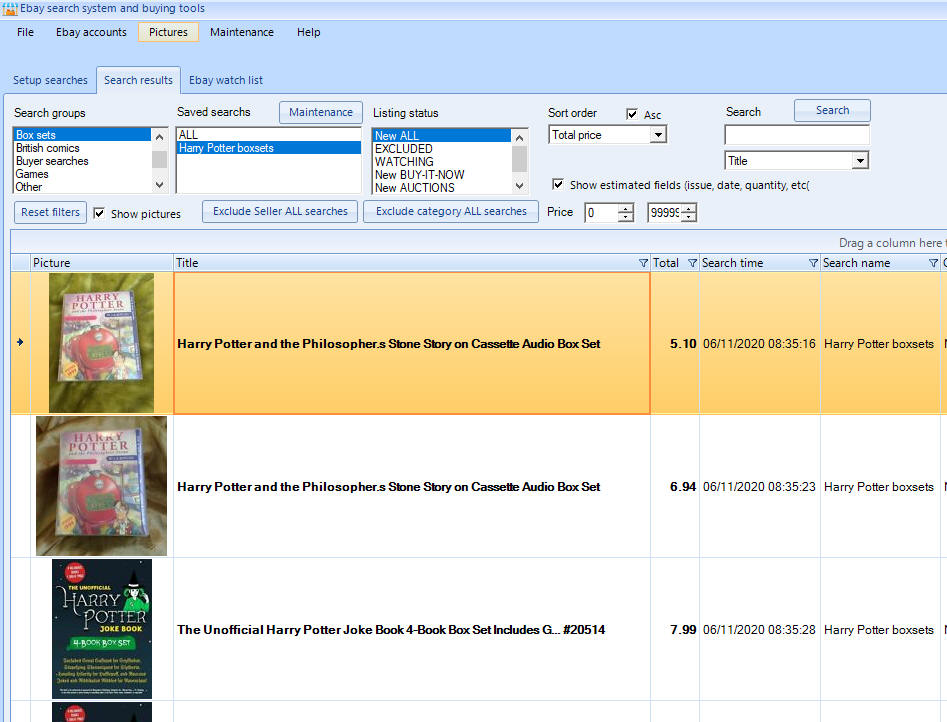
For each auction either double click to view on eBay, or use the 'Delete' key on your keyboard to exclude it from the list. Keep going until the list is clear.
The grid allows you to select multiple lines at a time by clicking on the first item you want to exclude, then hold the 'Shift' key on your keyboard to allow to you select multiple lines to remove:
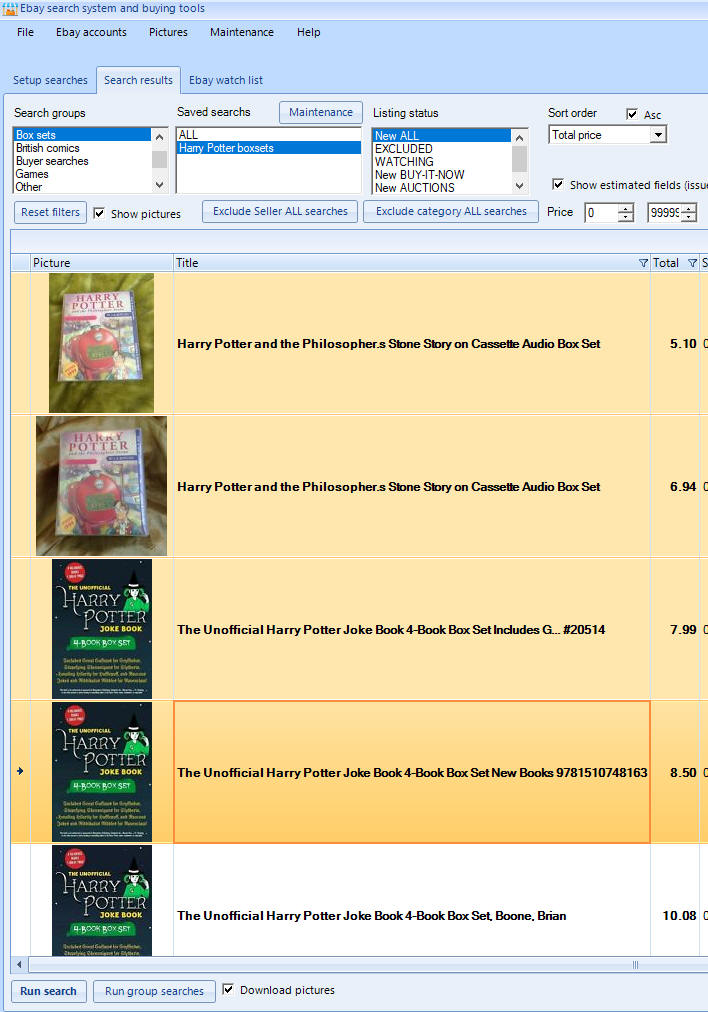
and then use the delete key to exclude on mass. After you have been using Jumble Saler a while, you will find you glance at the pictures and exclude loads very quickly. They are also ordered by price by default, so the cheaper items are at the start and once you get past a certain price, most stuff is going to get excluded anyway.
Options on this tab
'Search groups' - This is a list of the groups you may have set up for your searchs, so that you can group yours searches. You could, for example, have two groups such as 'DAILY' and 'WEEKLY'. You could put all your most important searches into a 'DAILY' group, and then just select that from the list and use the 'Run group searches' button to just run those searches each day. You could put the less important ones into a 'WEEKLY' group for stuff to look at when you get chance.
'Saved searches' - A list of your searches. If you have clicked on a group, then it just shows the ones in the that group.
'Listing status' - By default, all the new listings found have a status of 'NEW'. By default, listing status is set to 'New ALL'. The ALL bit means both Auctions and Buy-it-Now style auctions., but you can change this to 'New BUY-IT-NOW' or 'New AUCTIONS' if you are just looking for a specific type. 'EXCLUDED' shows all the items you have already EXCLUDED and ALL shows everything, which can be a very large list.
'Reset filters' button - Puts all the lists and options back to their default settings.
'Show pictures' - Show or hide pictures in the grid. You can see more listings on screen this way, but not the pictures. This is useful if you descide not to download pictures when you run searches, to make them quicker or to save disk space.
Price from and to - Obviously, this just limits what you see to within these price ranges. If you are only looking for cheap stuff, then you can set price limits on your search rules as well to only collect auctions within price ranges to save time.
Show estimated fields (issue, date, quanity, etc.) - See Estimated fields for more information.
Help system
Each screen and tab in Jumble Saler has it's own help page. So use the help pages on each screen for more information.
Support and reporting problems
Please email us at support@jumblesaler.com with any queries or problems.