Welcome to the Jumble Saler search system
NOTE - The Jumble Saler search system is just a limited version with Jumble Saler FREE Edition.
The easiest way to get started and start learning to use the Jumble Saler search system is by adding a new search with the walk through below:
1. Use the 'Add new' button to create a search record with some keywords and give it a name. For example, you may be looking for "harry potter books boxsets" which if you search on the eBay site will give you about 200 results. Give this a name like "Harry Potter boxsets" and save it. 200 auction results sounds a lot but this system is designed so that you can preview and exclude the ones you don't want very quickly.
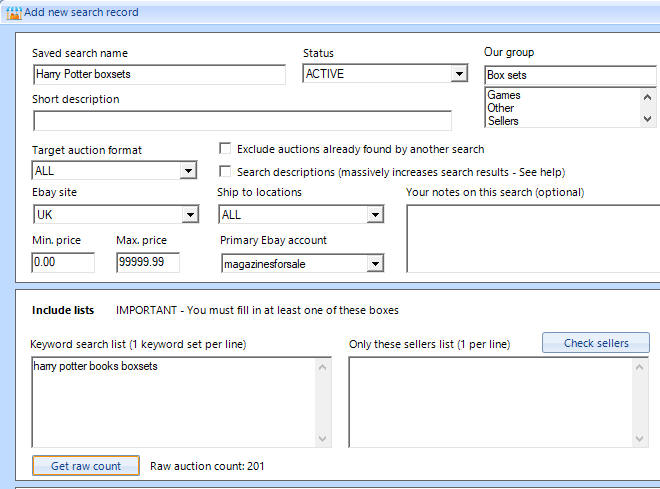
The 'Add new search record' screen above looks a bit complecated at first, as there are a lot of options. But just a name and your search keywords are needed for a start.
TIP - Go to eBay first and narrow you search a bit. For example 'Harry potter boxsets' will give you about 650 results to look at as they include DVD's, which isn't what we were looking for. 'Harry potter' on it's own will give you 500,000 results. You don't want Jumble Saler trying to download 500,000 auctions and preview pictures to your computer. Use the 'Get raw count' button (see above picture) to count the number of raw records.
2. When you have added a search record, go to the next tab called 'Search results' and click on your new search record "Harry Potter boxsets" and use the 'Run search' button. This will download all the results and a preview picture:
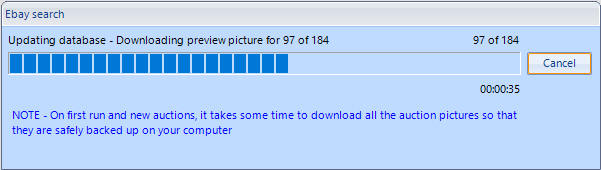
and display them in the results grid:
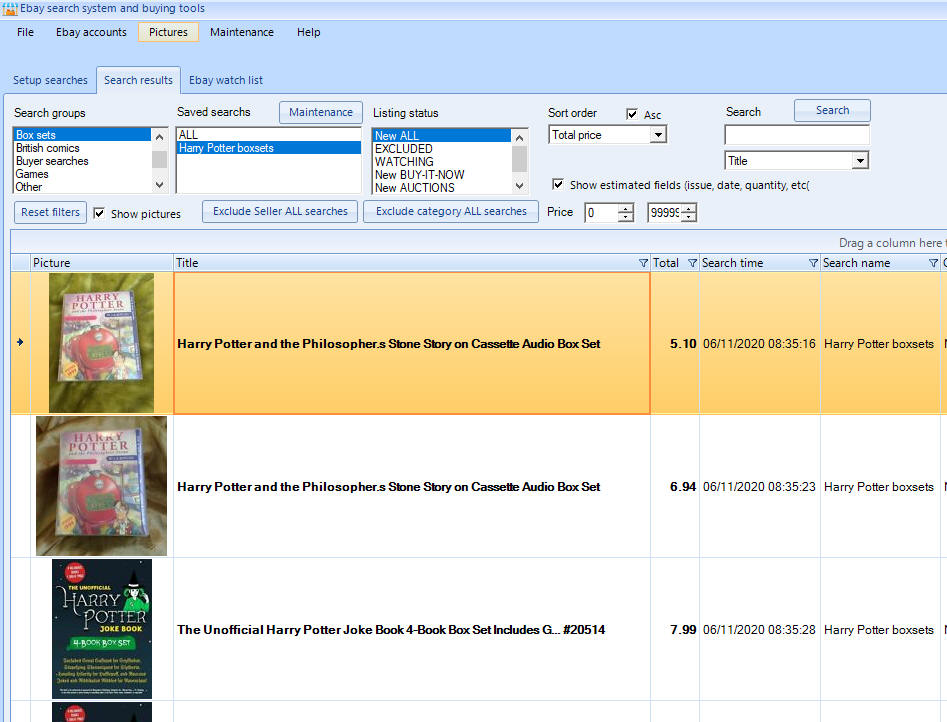
3. For each auction listed, either double click to view on eBay, or use the 'Delete' key on your keyboard to exclude it from the list. Keep going until the list is clear.
TIP - Click on the first item you want to exclude, then hold the 'Shift' key on your keyboard to allow to you select multiple lines to remove:
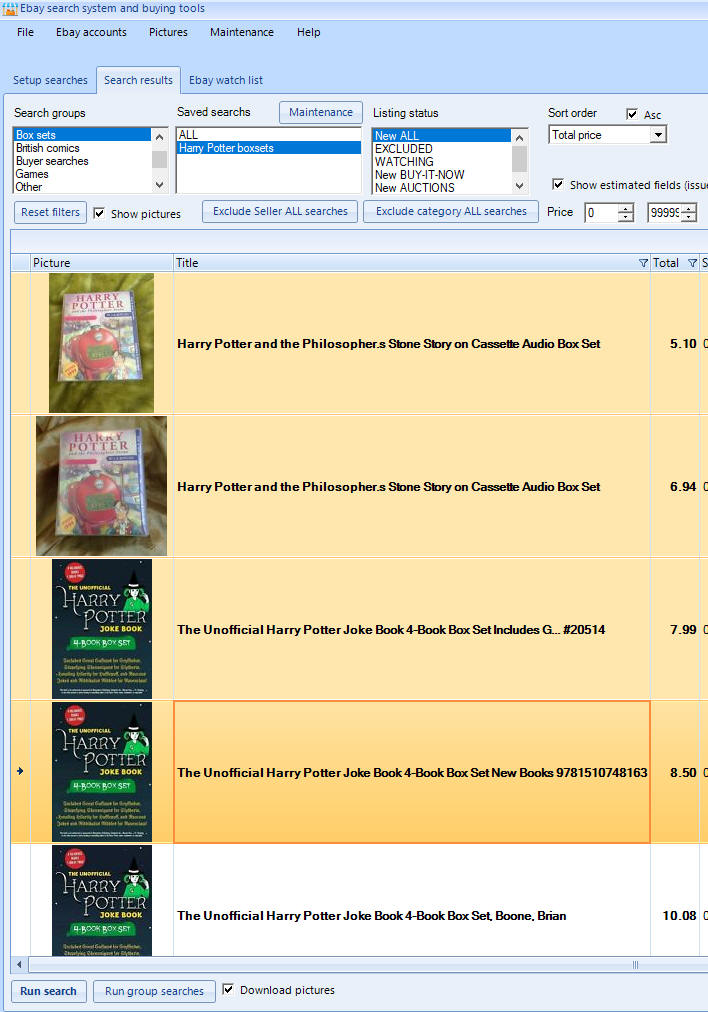
and then use the delete key to exclude on mass. After you have been using Jumble Saler a while, you will find you glance at the pictures and exclude loads very quickly. They are also ordered by price by default, so the cheaper items are at the start and once you get past a certain price, most stuff is going to get excluded anyway.
4. Now when you run this search again tomorrow, or again later, it will only show your new items you haven't seen before. Setting up the searches in the first place takes the most time as you need to go through all the results and then exclude them to narrow the list to nothing.
Jumble Saler also helps you narrow the results list with the following:
- If you are selling, it allows you to exclude your items on your eBay account or eBay accounts.
- Excludes items already in your watch list, so you aren't seeing the same stuff over and over.
- Allows you to exclude a list of keywords. For example, if you buy comics and have a 'comic collections' search, you can exclude the keywords 'DVD' and 't-shirt' which gets rid of all listings like 'comic collection on DVD', 'Collection of comic t-shirts', so you aren't seeing stuff you have no interest in. Your exclusion list can be set up at system level, which will apply it to all your searches, or just for a specific search.
- Allows you to exclude a list of sellers. If there is a seller that comes up a lot in your searches but they are overpriced, then you can exclude all their listings. You can set up a system level list that will exclude a list of sellers from all of your searches, and also set up lists on a search by search basis.
- Allows you to exclude a list of categories. When you search on the eBay website, it often narrows you down to a end category or a branch of the categories tree. You can search all categories with Jumble Saler and then just exclude a few categories that aren't relevant if required.
This tab - The 'Setup searches' tab
'Our group' list - When you create searches, you can also put a name in the 'Our group' box. This then automatically creates this 'Our group' list so that you can organise your searches. You will start with just a few, but if you buy collectables to sell on eBay, this list will grow larger and larger. Normally you will spot something new that goes for a high price at auction and you then realise that you need to start looking for these items at a cheap price, either on their own or within a bundle of items for sale.
'Count auction results' button - This fills in the 'Raw auction count' column and shows the total number of items found for the search keywords in your search. If you are getting too many search results on a daily basis and it's taking too long to go through, you can look at your searches and either delete some, or edit and fine tune your excluded keywords list. You can edit a search and set it to DISABLED:
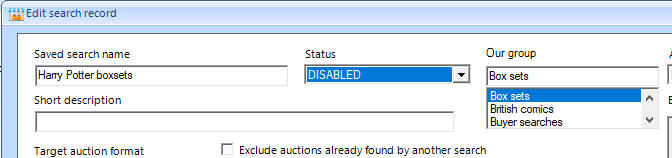
This will stop the search running when you run ALL searches.
Help system
Each screen and tab in Jumble Saler has it's own help page. So use the help pages on each screen for more information.
Support and reporting problems
Please email us at support@jumblesaler.com with any queries or problems.