Creating new auctions in our stock area, or editing exiting auction.
Jumble Saler allows you to edit or view an existing eBay auctions and then update eBay afterwards
"Arm chair" auctions - Sit in your arm chair watching TV and research items on eBay and create draft auctions, then add your pictures later
If you have a pile of items, like a box of odd books, you can sit and watch telly and research each item. Sometimes, with the high price of postage, some items are just not worth selling as individuals, so having a research session makes sense. You can then either block up the low value items together as a single eBay auction or send them to the local charity shop.
Items that are worth selling individually, you can create you auction, with a price (either a start price or Buy it now price) and save your auction. You can then add pictures at a later point. When you have clicked the 'Add new' button, then use our 'Copy auction' button to collect an auction you have found on eBay, so that you can download the title, price, category and item specifics automatically to save you time when creating your new auction.
After you have added your first auction, you can copy this as a template before using the 'Copy auction'. That way you already have options like auction type (buy it now or auction), delivery charge, delivery service, whether or not you accept returns, etc, already filled in. This also saves a lot of time.
If you are selling multiple copies of the same book, or other identical items with possibly differences in condition, then use our LOT number feature so that a different lot number is allocated to each of your auctions automatically. You can then attach a label or piece of paper with the lot number with item.
Optional fields
First thing to note is that Lavender colour sections:

are either optional or have a special purpose, so it's not as complicated as this screen looks at first.
Title quick modifiers (if you have enabled 'Books/comics/magazines extra boxes')
You will see the following area at the top of the screen:

If you have enabled extra fields for books, comics and magazines. (You can do this from the link at the top of the main screen).
This allows you to quickly update numbers and dates in titles to the next ones in a range. See Jumble Saler sequential items in titles system for more information.
Lot numbers
Is you are using Jumble Saler lot numbers then you will see additional options for lot numbers to the right of the title:

The 'Find & Replace' button is quite handy if you have copied an existing auction and want to do a find and replace to quickly change a brand name. For example, you might be selling a 'Sun newspaper' and have copied an auction for a 'Star newspaper' so you can use 'Find & Replace' to change 'Star' to 'Sun' throughout the listing.
Main boxes
| Field name | Description |
| Title | Your eBay item main title. Maximum 80 charaters in length. |
| Quantity | How many items you have of this specific item for
sale. For one off lots, this will be 1. You would change
to say 5 if you have 5 brand new Matrix DVD's, for example, all in
the same new condition. For private seller eBay accounts, you
are limited to 5 units. IMPORTANT NOTE - The Quantity box is set to 1 initially and is only enabled if you choose a 'Fixed price' auction, i.e. this in an eBay Buy-it-now auction. |
| Listing status | This will be 'Unpubished' for new auction items until published to eBay when they become 'Published to eBay'. There is also 'Sold' and 'Reserved'. Reserved stock is for new auction items where you will be selling the items in future at some point and don't want to see them in your 'Unpublished' list, so they don't accidently get published. |
| Lot number | See Jumble Saler lot numbers. |
| eBay category | Use the 'Browse categories' button to see recently used categories and also search for a category or even 'Ask eBay' which will find eBay's recommendations. The 'Load from auction' button allows you to copy and paste the URL/website address of an existing auction on eBay and Jumble Saler will grab the same category for you. |
| Condition | Make sure you select the correct category first. The condition of items depended on the eBay category selected. For example, for books you get options of 'New', 'Like New', 'Very Good', 'Good' and 'Acceptable', but for tiems like clothes you may get different options like 'New without tags'/ |
| Condition description | This is for USED items where eBay wants you to give a condition of the item. With books, etc, you can put desriptions like 'Nice condition with minor scuff marks', etc. You won't need to fill this in if you have specified the item is 'New'. |
| Brand/manufacturer | This is used for your own sorting and filtering in grids. See Jumble Saler our group and brand boxes for sorting and filtering. Just type in the brand, such as 'Apple', 'Microsoft', etc. |
| Our group name | This is used for your own sorting and filtering in grids. See Jumble Saler our group and brand boxes for sorting and filtering. |
| Background template | This allows you to create templates to frame you
eBay auction pictures. See Background image
templates for more information. The template system is full
customisable with an inbuilt designer and a template wizard with
loads of examples: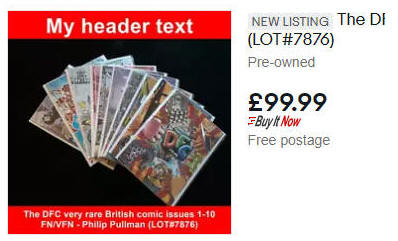 Also see Jumble Saler Background image Templates - Advanced walkthrough for an overview of creating a very flexible template and also specificing and using text for each of your auction pictures. This also shows how to use advert pictures to advertise and highly what you do. NOTE - Background image templates are a feature of the Jumble Saler STANDARD edition and higher. You can test them in the Jumble Saler FREE edition, but you will not be able to publish your auctions with them. You can preview how they would look by setting one up and previewing on of your new auctions. |
| Picture variable grid | If you are using the Background image
templates system, then you can optionally use this grid to specify text
that will appear on the picture template for each picture in your
auction. This can be useful to high light features.
See Jumble Saler Background image Templates - Advanced walkthrough for an overview of creating a very flexible template and also specificing and using text for each of your auction pictures. This also shows how to use advert pictures to advertise and highly what you do. |
| Pictures | See
Jumble Saler picture system for information
on how the Jumble Saler picture system works. You can just
browse and select pictures from your hard drive or from the new
picture folder. You can rotate pictures if necessary. For example, you take a piture on your mobile phone and it downloads to your computer upside down. You can select a picture and then use the 180 button to flip it the right way around. The 'Save pitures to folder' button allows you to save a copy all the pictures for the current auction to a different folder. The 'Restore original' button just resets the pictures to how they were when you double clicked an item to edit it. So if you have 3 pictures and delivery 1, then this button would restored the original 3. 'Open default' opens the defauld picture folder. 'Import next' imports 1 or more pictures from the default pictures folder. eBay allows a maximum of 12 pictures. However if you have taken say 15 pictures by mistake, Jumble Saler will still store them but will only publish the first 12. That way if you got messages from buyer and they wanted extra pictures, you may already have them. |
| Description template | See Jumble Saler Description Templates for information. |
| Item description | You can either just type in plain text into the
box, or you can use HTML which is the format that website pages use.
HTML allows formatted text, such as bold, underline, different
colours and font sizes. Use the 'Description builder' to load
a word processor screen that will allow you to create a nice
description. Description Builder also allows you to use
placeholder variables with it's 'Insert field' button: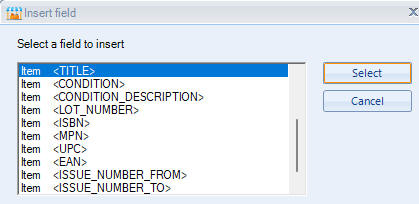 |
| Description preview | This displays a preview of your description. If you text is formatted at HTML then this shows you how it will look when on an eBay website page. |
| Start price | The start price of your auction, or if an eBay 'Buy-it-now' style auction, then this is the 'Buy-it-now' price. |
| Reserve price | The minimum price you are prepared to sell an auction at. This is normally where you start the bidding at £1/$1 but won't sell unless the bidders bid over say £25/$25. |
| Shipping service | This will show a list of valid shipping options for your country. If your account is on eBay.com then this will show US postal service options and if on eBay.co.uk, then the UK Royal Mail postage options, for example. |
| Shipping price | The shipping price / delivery charge you are charging for the item. This is a P&P figure, i.e. Post and Packaging. So if the postage is say 1.50 to post a magazine but you send in a 15p/15c board backed envelope, then you need to add this to the postage. Also so note for private sellers, eBay charge selling fees (normally 10%) on the price of the shipping price as wel. So 1.50 delivery plus 0.15 packaging plus 10% eBay fees on postage, then you need to set the shipping at say 1.85 so that you don't lose out. |
| Additional item | If you have set a quantity of 1 item for this
auction, then this will be greyed out. This is when you are
selling multiple items on a Buy-it-now auction, like when you have 5
of the same DVD's. You can set the main shipping price and
then an additiona item prie here if required. Sometime it
costs 1.50 to post for 1 item and the postage goes up to 2.00 for 2
items, so you could set the addition cost here to say 0.50.
This then encourages your buyer to buy more than one. If you see WARNING - Check addtional shipping price (+international) price - See help then you have specified that there is more than one item for sale but have an additional item shipping price of ZERO. This means that you are charnging 1 delivery charge for 2 or more items if sold together. This may be fine, or your discount to the customer, but if an item is heavy, it may cost a lot more, so this message is just asking you to double check. |
| International ship to locations and direct international delivery | Only use this box if you are going to do direct
postage to other countries. If you leave this as 'None' and
you are signed up to the eBay Global Shipping Program, then eBay
will offer to do the international delivery for you by you posting
to the eBay Shipping Centre in your country and eBay doing the
international part of the delivery. Currently, you can either choose Worldwide from the list and set a flat shipping rate to anywhere in the world. If you do this, then keep in mind that eBay also charge an extra 2% fee for international orders and you need to set this to the highest rate. For example, if in the UK, its more expensive to ship to Australia and New Zealand than to the US, so your single shipping rate should be based on the costs to Australia. VERY IMPORTANT - If you have you a listing for more than 1 item, then make sure you put an increased cost per item in the internation Additional (additional postage cost for each item the buyer buys' otherwise a buyer could order 5 items for the delivery charge set and you could be out of pocket posting them. |
| Additional shipping services | You can special an additional 3 shipping services for your own country. This is useful so you can optionally offer fast and economy delivery options. |
| Internation additional shipping services | You can special an additional 3 international shipping services for your international deliveries. This is useful so you can optionally offer fast, tracked and economy delivery options. |
| Format | Either 'Auction' or 'Fixed price'. A 'Fixed price' auction is an eBay Buy-it-now. |
| Allow best offer | With a format of 'Auction' this will allow a buyer
to submit an offer to you if there are no bids. As soon as
there are bids on an auction, then this disappears. With a format of 'Fixed price', i.e. a Buy-it-now auction, then this allows a user to submit an offer any time. You can use the 'Accept offer of at least' and 'Auto decline offers lower than' options to specific amounts for these. |
| Accept offer of at least | Only for 'Fixed price auctions if you allow best offers. |
| 'Auto decline offers lower than' | Only for 'Fixed price auctions if you allow best offers. |
| Duration | With a format of 'Auction' this will allow you to specific 3, 5, 7 and 10 day auctions. Just a note. Even if you have free listings, then you have to pay a listing see for 3 day auctions. With 'Fixed price' auctions, then you can also do 30 days or 'Good Til Cancelled' (GTC). Just a note. GTC auctions are effectively 30 day auctions that auto-renew. We have been charged listing fees on these after 30 days, even though we have had free listings available at the auto-renew point. |
| Item specifics section | See eBay item specifics for more
information on how how using these can improve your eBay listings.
Item specifics are different for each category on eBay, so the ones you will see for clothes will be items like 'Size' and 'Colour', wheres for books, they will be 'Publication Date', etc. NOTE - If you change the value of an item specific, make sure you click the 'Save' or 'Next' button to save the change. |
| Live auctions linked | If you have already published the listing, you can view it online here. |
| Optional sections | All the rest of the sections with a lavender background colour are optional. |
| Additional delivery instructions | These appear in the checkout section of your ebay auction. |
| PayPal email address | No longer used. eBay now has it's own payments system. |
| Subtitle | You can add a subtitle you your auction, but eBay charge you an additional fee for this. |
| Private listing | eBay says about these "The private listing option hides the identities and email addresses of all bidders, both during and after a sale. Only the seller and the highest bidder see the listing results, and only the seller knows who bought the item." |
| Require immediate payment with Buy-it-now | As it says. However, we have never ticked this on any of our auctions. People that use the Buy-it-now button pay straight away as far as we know. |
| Package type | Specificies the package type such as 'Letter' or 'Large envelope'. Not generally used. |
| Package weight | Optional field. You don't need to fill this in. If your eBay account is on eBay.com, you will see 'Package lb' and 'Package oz' boxes for pounds and ounces. For eBay.co.uk and most other eBay sites, you will see 'Package kg' instead. |
| Package width, height, length | For eBay.com users, these will be in inches and eBay.co.uk and European eBay users will see these in centimeters. These are all optional fields and you don't need to fill them in. |
| Schedule date/tiem | You can specify when you want the auction to start and then this information is passed you eBay when you publish your item. We aren't sure why, but went you specific a time, eBay seems to give you a randam approximate time whether publishing with Jumble Saler or doing this on the eBay website. You can always view your scheduled listings on your eBay control panel by going to 'Selling' then clickong on 'Listings' then 'Scheduled'. You can even highlight a load and then click on the 'Reschedule option'. This allows you to re-schedule and even put the finish times a set amount apart, such as 1 minute. |
Books, comics and Magazines
If you have this enabled, then you will also see:

This allows you to add issues and volume numbers for items such as comics. This information doesn't go to eBay, but allows you to sort in the main grids by issues and volume number.
Bulk auction changes - Updating more than one eBay auction at a time
Use the 'Bulk changes' button on the main screen which is useful for
updating several auctions at ones. For example, updating the delivery
charge on multiple auctions because of a postage price rise.