Search records
This is where you set up what you would like to search on. You can add lots of search terms that you actually want to search on eBay one, under 1 record. For example, lets say you were after a particular magazine of a particular date, say 01 January 1973, so you might set up multiple eBay searches on this one record, for example:
my search magazine 1973
my search magazine January 1973
my search magazine Jan 1973
my search magazine 01/01/1973
Even though we are just want a magazine from January 1973, we also have 'my search magazine 1973' as we want to pick up auctions with titlles like
"5 x My Search Magazines from 1973"
When the search record runs, it will run all the searches, collate the results, remove any duplicates and then display the results in our grid. The idea is that you then use the EXCLUDE button to get rid of any you are not interested in, and use the EXCLUDE CATEGORY or EXCLUDE SELLER buttons to help narrow down to a minimum list to look at. After the first run, which may get dozens or even hundreds of results, and you exclude all the stuff you don't want, then it becomes easy to spot new listings from then on.
IMPORTANT NOTE - SEARCH DESCRIPTIONS - If the magazine you are looking for is rare and expensive, you might want to also use the 'Search descriptions' check box. This will return hundreds or thousands of results, from all sort of irelivant categories (which you can go through and use your EXCLUDE CATORY or EXCLUDE CATEGORY FROM ALL SEARCHES buttons) which will allow you to spot auctoins with specifiy keywords in, which might not appear in the titles.
This is the same as searching on the eBay website using the 'Include description' check box. For example, if I search (on our fictional magazines) with the default 'Include description' tick box unchecked, I get 1 result:

If I then tick the 'Include description', I get 3,138 results for the same search:
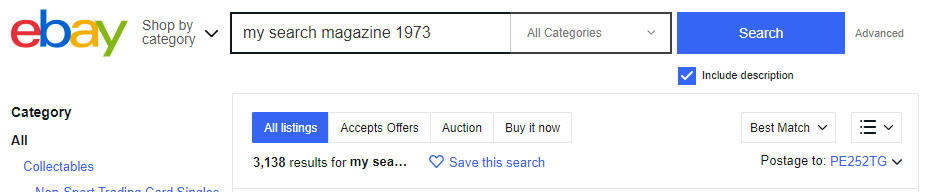
What I will get stuff from loads of different categories, such as coin collecting, that we don't want. It is best to narrow down to just specificy categories, or exclude any categories that come up that aren't relavent.
There are a lot of options on this screen so here is an explanation of each of the boxes:
Category
You can optionally search a specific category. It can be one of the main categories, such as 'Home & Garden', 'Fassion', etc.

which means that all the sub categories are also searched. Alternatively, you can pick any category on the category tree, whether it's an end category or one in the middle.
Saved Search name
A nice friendly name that will appear in the lists.
Keyword search list and Excluding keyword list
You can use search terms the same way you do on the eBay website. In fact, it's best to start there and narrow down your search term to as few results as possible.
For example on the eBay website, doing a search on:
comics
will return around 5,400,00 results, which is silly. Narrowing down to:
british comics
takes it down to 31,000 results, which is still too much, so keep adding keywords:
british comics 1960s
and now we get 140 results, which is managable. You might also want to return "UK comics 1960s", so you can use an OR statement in your keywords:
(british, UK) comics 1960s
The (british, UK) bit means that you want either "british" OR "UK" in the auction title. You can also build up multiple OR statement such as:
(british, UK) comics (1960s, 1970s)
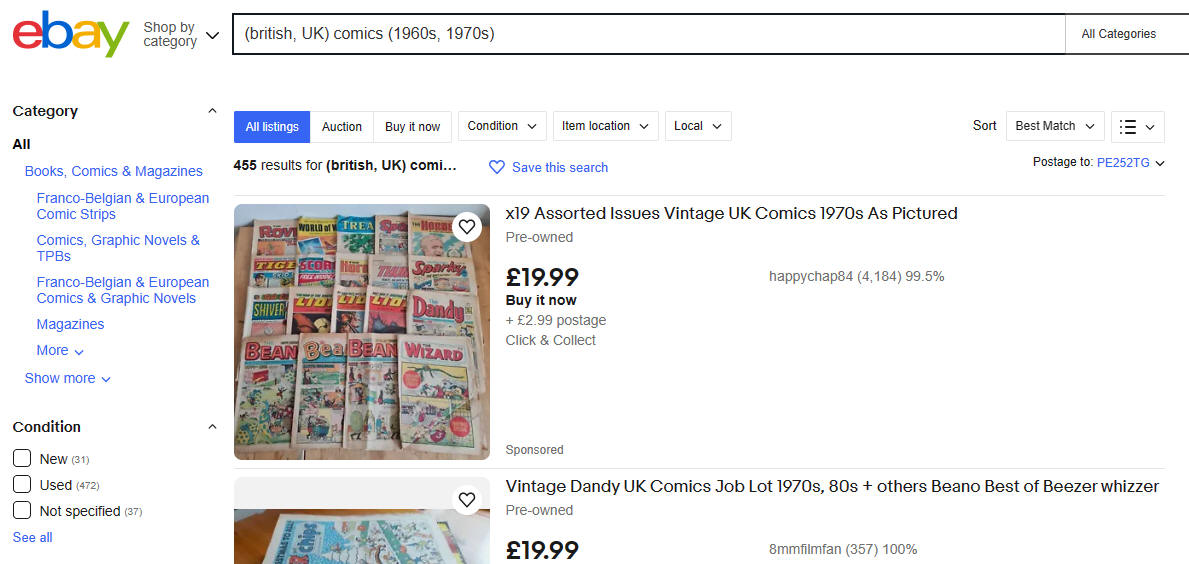
This is now returning 455 results, which sounds a lot, but this is where our search system comes in. As you have a quick look at the results, you may see things like:
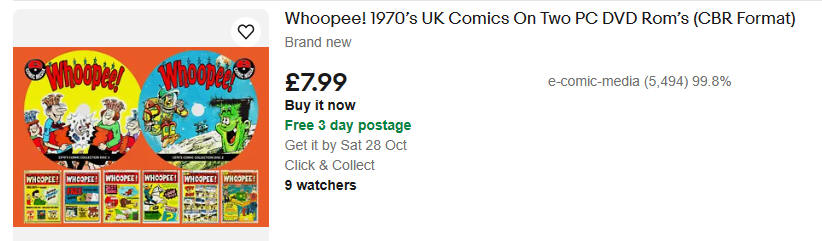
and we may not want DVD's, so we can now add the term 'DVD' to the 'Excluded keyword list' box:
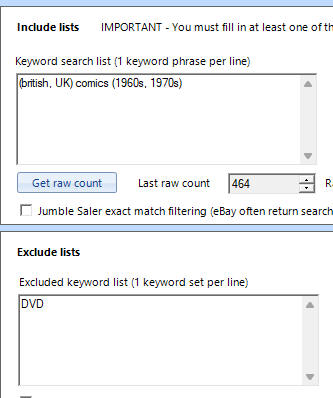
which will then filter out auctions with DVD in their titles.
Excluded keyword list
Add these 1 per line for example. Sometimes you want to exclude a phase such as as "free postage" but you search could be on "magazine free" as you are looking for free gifts, free posters, etc. So you can put the excluded phase in teh excluded keywords list, for example:
free postage
free posting
free UK post
free US post
so that these get dropped from your returned results, which could be dozens over listings.
After eBay search Jumble Saler additional filtering
This is the same at the Exlcuded keyword list but is applied after we collect the results from eBay. This is because eBay can still return titles with keywords that we have excluded as it uses a very sophisticated search algorithm. Also, your list of excluded keys that we send to eBay may be too long if you have a lot of them, so you can do additional filtering here when the results come back.
eBay site and Available from sellers
You have to choose which eBay site you are searching. So if you are in the Unitied States, you will be searching the US eBay site, in the UK, the UK one, etc.
Available from sellers - This is either DOMESTIC, i.e. just return results from people listing auctions in your own country, or WORLDWIDE which will then include auctions from other controls that you can bid on and receive via international post. If you select WORLDWIDE then sellers can will either be delivering via of of these two options:
1. Direct international shipping and the shipping charge is collected when we search eBay
2. Via the eBay Global Shipping Program (GSP) which is were the international seller will post to an eBay Global Shipping Program centre in their own country and then eBay do the international part of the delivery. When we search eBay, the search doesn't return the international shippping costs. So you can use the 'Est. eBay GSP fees', i.e. estimated eBay Global Shipping delivery charge. We have defaulted this to 25.00 (whatever your currency) so that when you are looking auction totals, you will at least see a delivery charge otherwise it will look like free delivery. When using estimated fields, this means you will get more accurate results.
Status
Either ACTIVE or DISABLED. DISABLED searches don't appear Search results list or are run automatically by the Jumber Saler Manager tray icon program.
Our group
This allows you to group a load of search rules together, to make them easier to manage if you end up with dozens of rules. This then automatically creates this 'Our group' list so that you can organise your searches on the main screen. You will start with just a few, but if you buy collectables to sell on eBay, this list will grow larger and larger.
Jumble Saler exact match filtering (eBay often return searches that don't have all your keywords)
You can optionally use this checkbox to narrow eBay's returned searches to just auction titles that include ALL your keywords.
You can still use OR statements such as:
(collection, bundle, joblot)
and one of any OR keywords you use must be within the search term. If you have ever searched on eBay, you know that eBay results don't come back with exactly what you are looking for and you wonder why certain auctions appear when they don't contain your search terms.
NOTE - Ticking this option won't change the 'Law raw count' figure when you click on the 'Get raw count' button. This is because this additional filtering is applied by Jumble Saler after the raw results are downloaded from eBay which the search is run.
Use estimated value fields
This feature usess search estimated fields which try to work out from the title how many items there are in an auction and then give an estimated unit price. For example, the title "50 x nice used books" starting at $50 or £50 (with free delivery) would have an unit price of $1 or £1 per book. This can be useful when you are looking for comics, magazines, etc.
NOTE - Estimated unit price is: number of times divided by total price (i.e. item price + item delivery)
Max est. unit price - This is useful to really narrow down results from the raw auction count. So if you were looking for a particular comics and set this to say 5, then it would show you all the single comics, so would pick up:
| Title | Total | Estimated | Estimated |
| quantity | unit price | ||
| spiderman comic #3 | 5.00 | 1 | 5.00 |
| 2 x spiderman comics | 9.00 | 2 | 4.50 |
| 10 spiderman comics | 25.00 | 10 | 2.50 |
But would exclude:
| Title | Total | Estimated | Estimated |
| quantity | unit price | ||
| spiderman comic #2 | 15.00 | 1 | 15.00 |
| 2 x spiderman comics | 19.00 | 2 | 9.50 |
| 10 spiderman comics | 500.00 | 10 | 50.00 |
Jumble Saler won't always get this right and it can't do an estimate for a title like "Box full of spiderman comics", so will put the estimated quantity to 1. If you use the maximum estimated unit price, you may also want to set up another rule record for collections and joblots as well.
This part of the system is designed where there is a high number of raw searches. "Spiderman comic" will return around 30,000 raw search items, for example. You can use this to narrow down large numbers of auctions and then Jumble Salers can just add to the grids a much more narrowed number of auctions for you to look at:
Max est. quantity - This is useful if you are only looking for collections that have a minimum quantity of items in, say 50 or 100, as you may only want to buy in bulk and then also est a maximum estimated unit price as well, so that you are only looking at cheaper collections.
Target auction format
These are:
ALL - Auctions and Buy-It-Now fixed priced auctions (BIN for short in eBay speak).
Auction - Just auctions where you bid against other eBay users plus 'Auctions with BIN', which are auctions but there is also a BIN or Buy-It-Now button on.
Auction with BIN - Auctions which have a Buy-it-Now button. There doesn't tend to be many of these, which is why they are grouped in with the Auctions and the Fixed price auctions.
Fixed price - I.e. Buy-it-now auctions, plus 'Auctions with BIN' again.
IMPORTANT - Don't ever choose 'Auction with BIN' as it's just there so that if you choose ALL and do a count it with 'ALL' and then do another count with 'Auction' and 'Fixed price', you might notice a discrepency, like in the numbers below:
| All | 319 | All items | |
| Auction | 92 | 'Auction' and 'Auction with BIN' | |
| Auction with BIN | 2 | Just 'Auction with BIN' | |
| BIN | 229 | 'Buy-It-Now' and 'Auction with BIN' | |
| Total of above | 323 | Extra 2 as 'Auction with BIN' included in 'Auction' and 'BIN' |