NOTE - Background image templates are a feature of the Jumble Saler STANDARD edition and higher. You can test them in the Jumble Saler FREE edition, but you will not be able to publish your auctions with them. You can preview how they would look by setting one up and previewing on of your new auctions.
Background image template records
See Background image templates for more information.
Also see Jumble Saler Background image Templates - Advanced walkthrough for an overview of creating a very flexible template and also specificing and using text for each of your auction pictures. This also shows how to use advert pictures to advertise and highly what you do.
IMPORTANT NOTE - Before using this screen, you need to have created 1 or more background image template files (.RPIC). There is a quick walk through on the Background image templates help page.
Options on this screen
Settings type - The options are "SIMPLE" and "FLEXIBLE", and if you are using the Jumble Saler Stock System Edition, there will also be "STOCK SYSTEM"
SIMPLE - Just allows you to use a single background image template file (.RPIC) and all the pictures for your auction will be merged with this template.
FLEXIBLE - This allows you to choose different template files (.RPIC) for different pictures. For example, you could have a different file for the first picture and then a different one for any additional pictures. With Jumble Saler, you can specify two pieces of text that can be passed to these templates, which can be written on above or below the final pictures. You may also want to specify an advert for your eBay business as a final picture to add to all your auctions (assuming you have less that 12 auction picturs).
STOCK SYSTEM - For use with the Jumble Saler Stock System and Jumble Saler Comics editions.
Specifying additional pictures such as Rear, Middle, Additional1, Additional2, etc
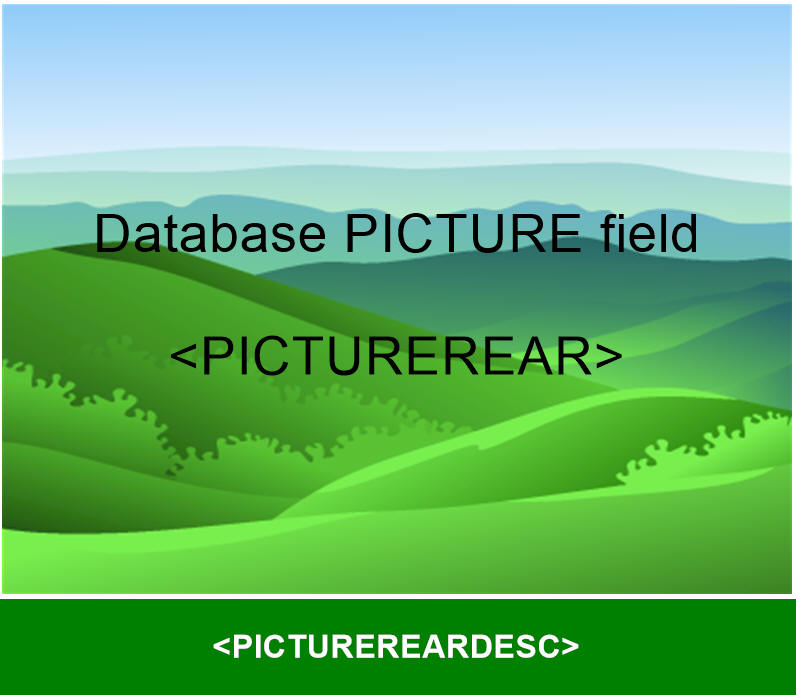
For example, if you want to display stock system products which have a Rear picture set, you will need to sets up a new .rpic file with the main picture variable set to <PICTUREREAR>, and the text description as <PICTUREREARDESC> like in the picture below:
You will also need to to use the 'Optional conditional SQL statement' box on this screen:
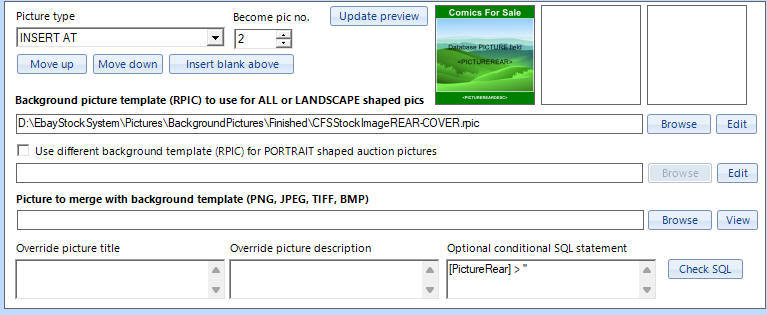
The SQL text of:
[PictureRear] > ''
This means to only include this picture if the rear picture field in on the Stock System record has a rear picture allocated. So what happens, is that if it merges with a Stock System record with a rear picture allocated, then it's merges the picture, and if not, then this panel is just ignored.
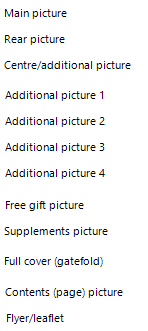
Other pictures that can be used:
PictureLarge
PictureRear
PictureCentre
PictureAdditional1
PictureAdditional2
PictureAdditional3
PictureAdditional4
PictureFree
PictureSupplements
PictureFullCover
PictureContents
PictureLeaflets
which correspond to the default picture names on product records:
The description variables are:
<PICTURELARGEDESC>
<PICTUREREARDESC>
<PICTURECENTREDESC>
<PICTUREADDITIONAL1DESC>
<PICTUREADDITIONAL2DESC>
<PICTUREADDITIONAL3DESC>
<PICTUREADDITIONAL4DESC>
<PICTUREFREEDESC>
<PICTURESUPPLEMENTSDESC>
<PICTUREFULLCOVERDESC>
<PICTURECONTENTSDESC>
<PICTURELEAFLETSDESC>
Jumble Saler Comics Edition (plus Jumble Saler Stock System Edition) - Choosing different template files to display depending on the condition/grade of stock
New feature for Jumble Saler V1.1.63 and above
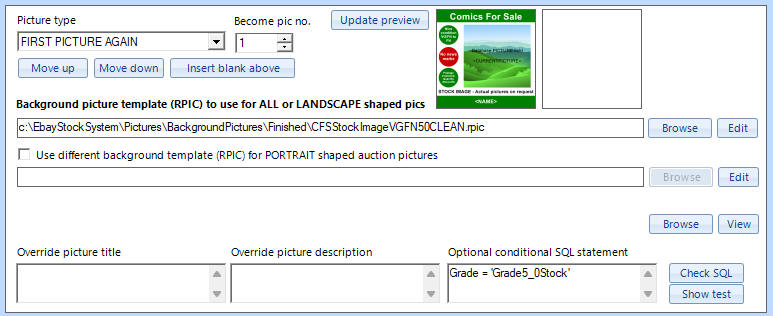
You may want to have a completely differently designed main picture template paid depending on the condition of an item, or the grade of mainly secondhand items like comic books. To do this, then you need to add a 'FIRST PICTURE AGAIN' entry like:
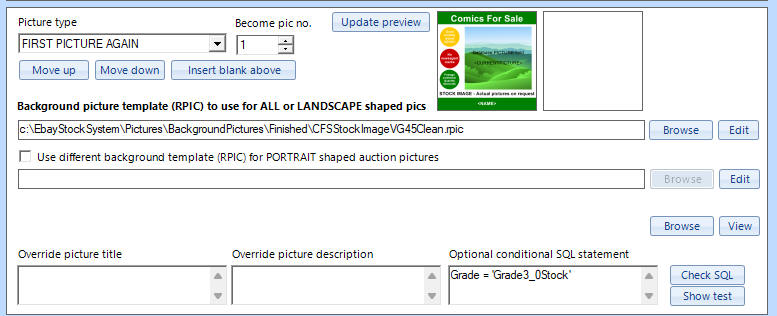
which becomes pictures number 1. You will notice that the 'Optional condition SQL statement' is 'Grade = 'Grade4_5Stock''. This is the raw name of one of the stock fields. You can then specify other grade templates in the same way:
with this one using a different template name, plus the 'Optional condition SQL statement' is 'Grade = 'Grade5_0Stock'' instead.
The raw field names available are:
Grade9_4Stock
Grade9_0Stock
Grade8_0Stock
Grade7_0Stock
Grade6_5Stock
Grade6_0Stock
Grade5_5Stock
Grade5_0Stock
Grade4_5Stock
Grade4_0Stock
Grade3_5Stock
Grade3_0Stock
Grade2_0Stock
Grade1_0Stock
Grade8_0StockNews
Grade7_0StockNews
Grade6_0StockNews
Grade5_0StockNews
Grade4_5StockNews
In numbers refer to the 10 point comic grading system, but it's easier to just think of these as boxs you can put stock numbers in, and you can pick friendly names on most screens. On the system settings screen, you can choose how these boxes are seen within Jumble Saler:
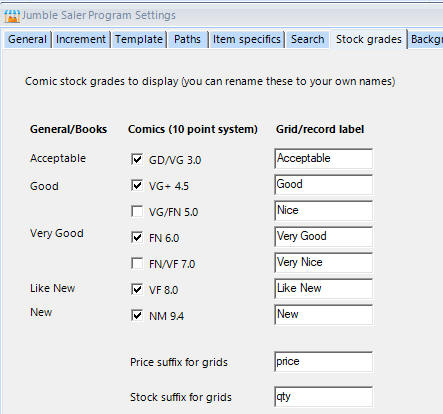
Using a single template and displaying different grade information using variables
You can now use the following variables within both picture and description templates:
<GRADE> - This is the raw field name such as Grade5_0Stock
<GRADENO> - 10 point system grade number, such as 5.0
<GRADEGRID> - The grid name for this grade taken from the product group or system settings
<GRADESHORT> - The short name for this grade taken from the product group or system settings
<GRADELONG> - The long name for this grade taken from the product group or system settings
For example, the <GRADESHORT> and <GRADELONG> are using on this picture template:
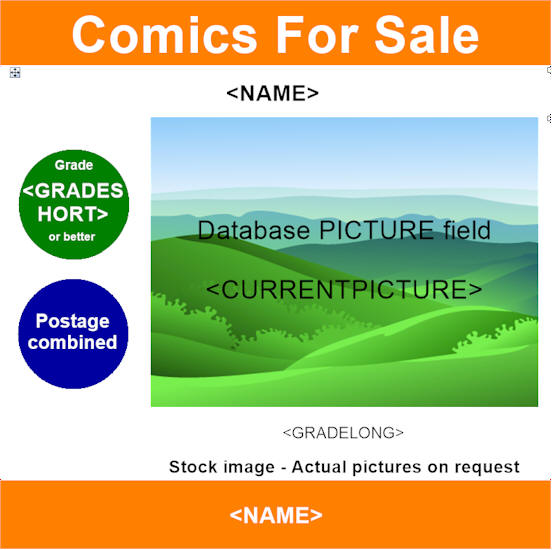
Which when combined to a stock record for a comic book, looks like:
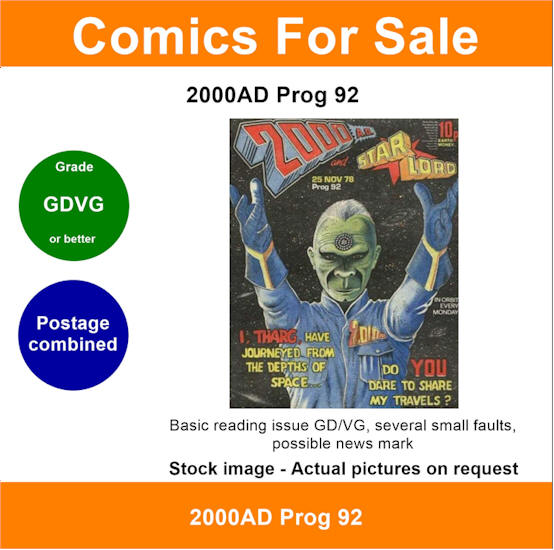
You can see the teh <NAME> variable is swapped for '2000AD Prog 92', the <GRADESHORT> for 'GDVG' (which means Good/Very Good in comic speak), and the <GRADELONG> for a longer description of the grade.
Since the text for <GRADESHORT>, etc, can be set or any grades you use in your product system. It may be as simply as just using grade 9.4 for NEW, then you can have different condition descriptions passed into the template, which can be different for every product group.