Importing products/comics from a spreadsheet (.CSV file) into
Jumble Saler
You can import products or comics listing in a spreadsheet file (.csv file) into Jumble Saler.
Walk through of creating a new product group and importing products you have created yourself
Jumble Saler allows you to imports spreadsheets of comics/products into the Jumble Saler Stock System. You can use Use Microsoft Excel or the free OpenOffice.org Calc (http://www.openoffice.org/) program to create a spreadsheet of products to import.
To do this:
1. Create a new Group (Main screen 'Stock system' tab and use the 'Add new' button in the bottom left corner).
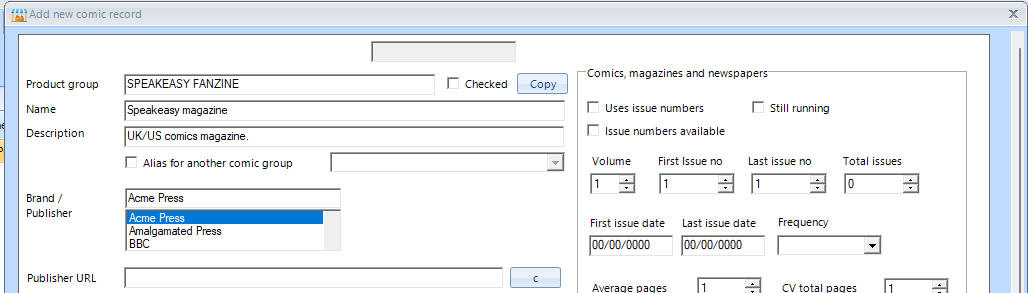
You only need to fill in the Product group, name and Brand/publisher fields in order to save the record, so click on OK as soon as you have done this with your order product group.
In the above picture we have created a product group called 'SPEAKEASY MAGAZINE'.
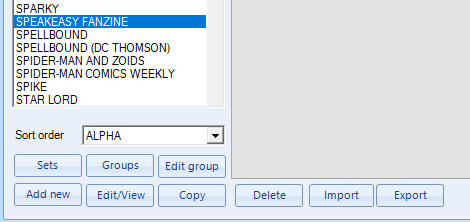
2. Find your product group in the list. Then we are going to use the Export button to get a blank spreadsheet. On the Main screen 'Stock system', use select your group and use the 'Export' button:
Which loads the Export screen, so click on the 'Export' button:
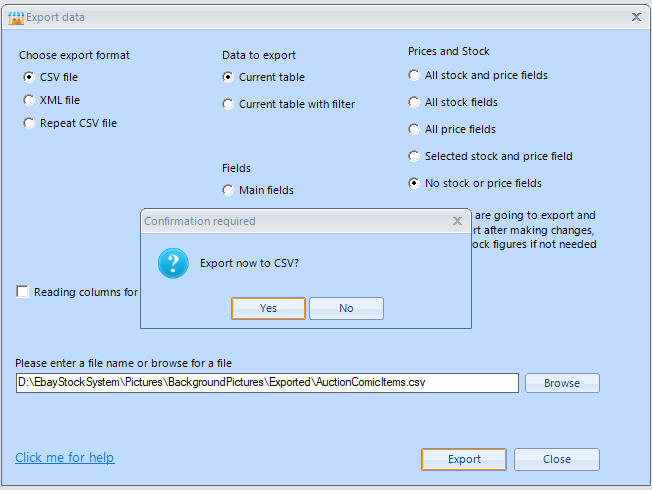
and confirm with the 'Yes' button. Then then Yes again to:
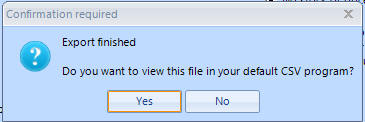
to open Excel or another spreadsheet program installed on your system.
This is how it looks in Microsoft Excel:
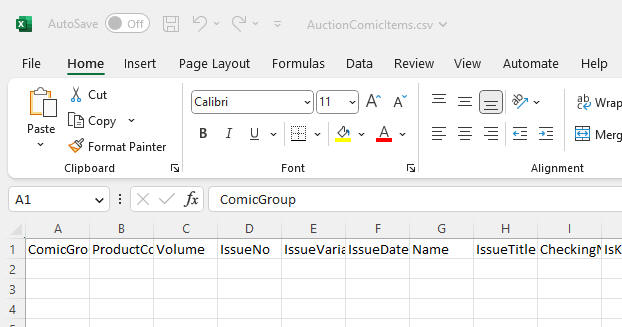
and you can resize the columns widths:

3. Fill in the first couple of lines. Speakeasy magazine had 120 monthly issues, in our example, so will in the first two issues:

The name in the ComicGroup (product group) needs to match your product group, in our case SPEAKEASY MAGAZINE. These are sequentially numbered, so the IssueNo is 1 for the first issue and 2 for the second, first two issue dates are 1 month apart and the Name reflext the numbers.
4. Now with Microsoft Excel, you can use the Autofil feature. So we are going to highlight the first two lines:
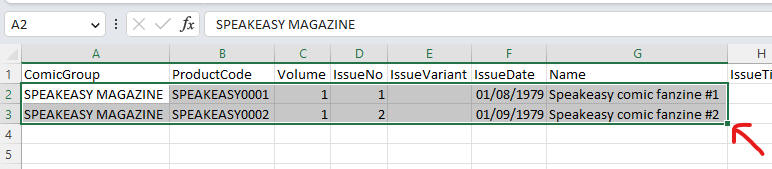
and then mouse click on the little square (our red arrow is pointing to this in the above picture) and then hold the left mouse button and drag down:
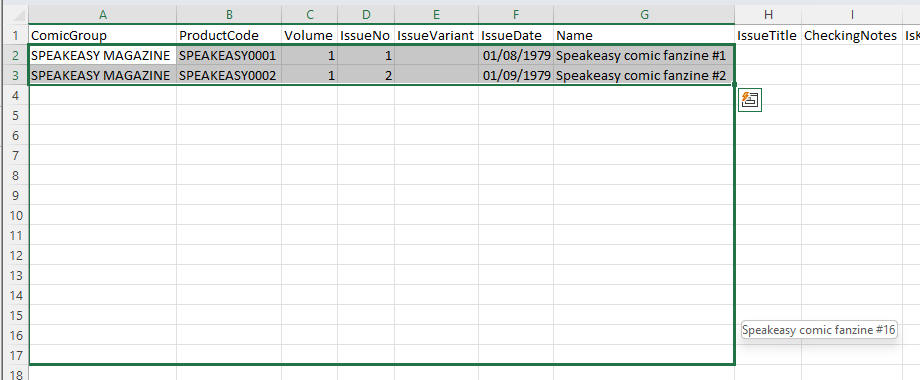
and release the mouse button:
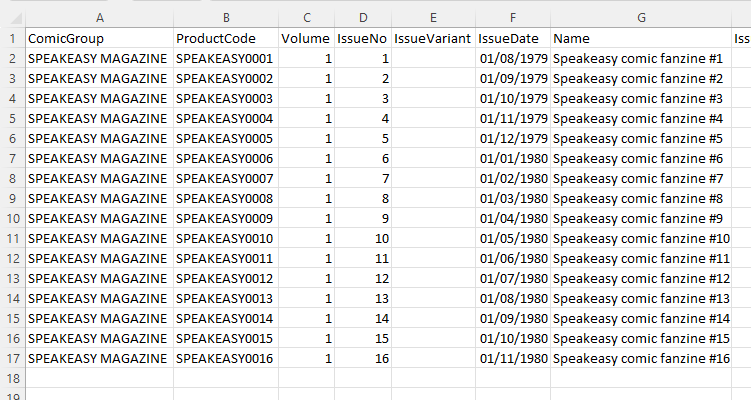
We've stopped at number 16 but we could have dragged all the way down to issue 120 to have our basic products created for use. You will notife that the ProductCodes are now uniquely numbered, as well as the IssueNo and the Names. Plus the dates have been increamented in 1 month intervals. In the case of this magazine, we will have to edit some of these.
We could fill in the rest and start adding information on which are key issues (number 1) or put information on extra stuff for eBay titles, but we'll leave if there for now.
See see Creating product codes for comics for information on the format of product code recommendations for comics and other items, especially ones with variations.
6. Now we are going to import into Jumble Saler. On the Main screen 'Stock system', use select your group and use the 'Import' button:
Which loads the Import screen, so click on the 'Import' button and the 'Import' button on that screen. We are just loading the CSV file we created above, so no need to change the default name. The new products will then appear in the stock system grid:
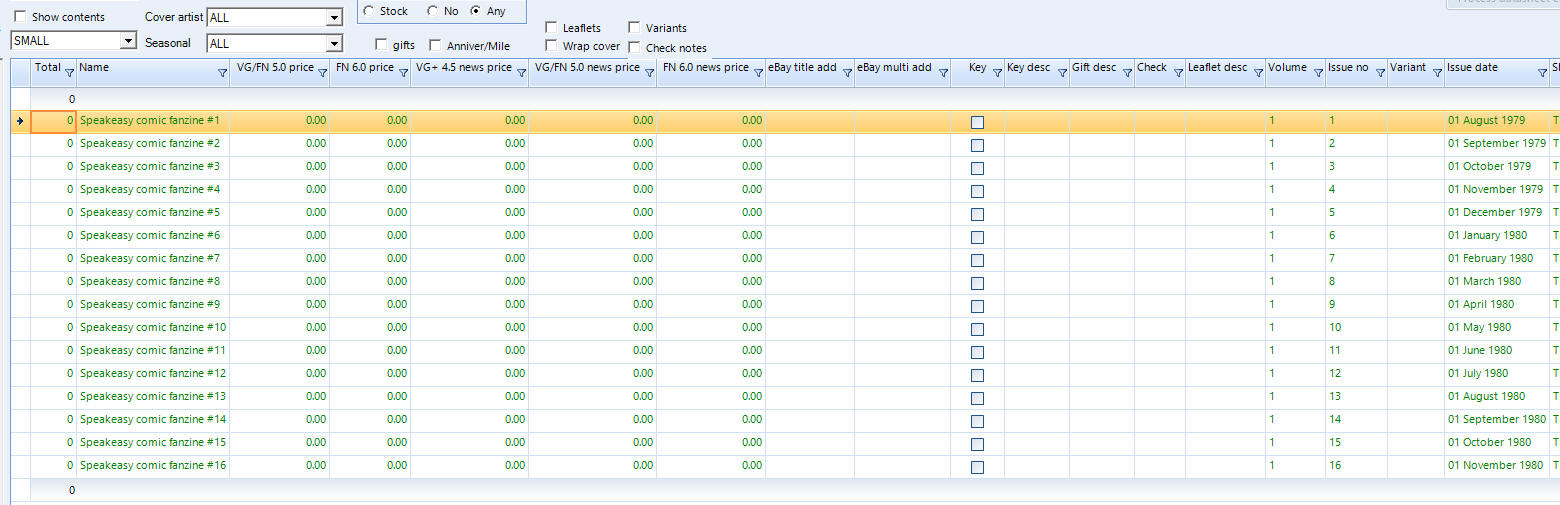
7. Now if you put a tick in the 'Show main pictures' button, you will see there are no pictures:
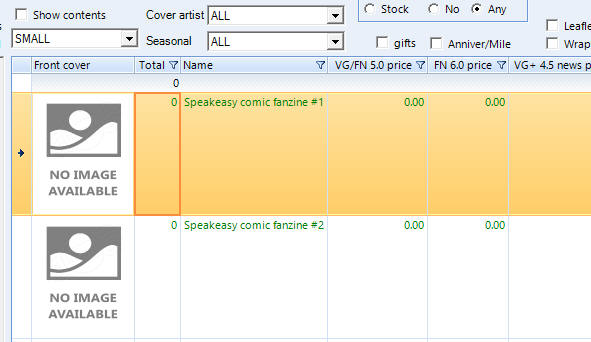
8. Jumble Saler stores all the the pictures for a product group using the product code. So if you double click any of items in the grid to edit one:
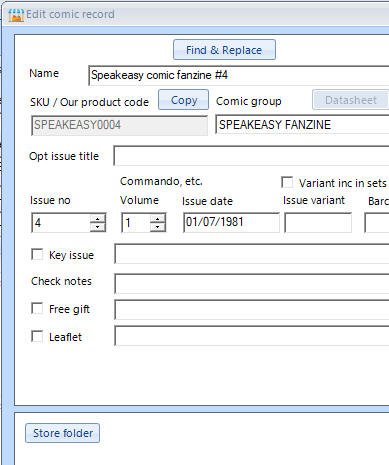
You can use the 'Store folder' button to see where they would be stored on your system:

We've collected a couple already in the above picture just so you can see the main picture is just called the same as the product code plus a .jpg file extension.
9. Putting image names on your import spreadsheet. You can also put image names in your import spreadsheet. The PictureLarge is the main image and you can use either local picture names like 'c:\pictures\Speaskeasy1.jpg' or URL's like https://www.jumblesaler.com/Comics/SPEAKEASYFANZINE/SPEAKEASY0002.jpg which Jumble Saler will automatically download to it's picture cache.

10. You can collect product pictures from internet searchs or on eBay, and we have a screen designed to allow you to quickly do this by right mouse clicking pictures on the internet and click on 'Copy image' in your browser (Google Chrome, Microsoft Edge, etc) and then you can use the buttons on thi screen to quickly allocate to a product record:
To view this screen, use the 'Get pics' button in the top right corner of the Stock System tab on the main Jumble Saler screen:
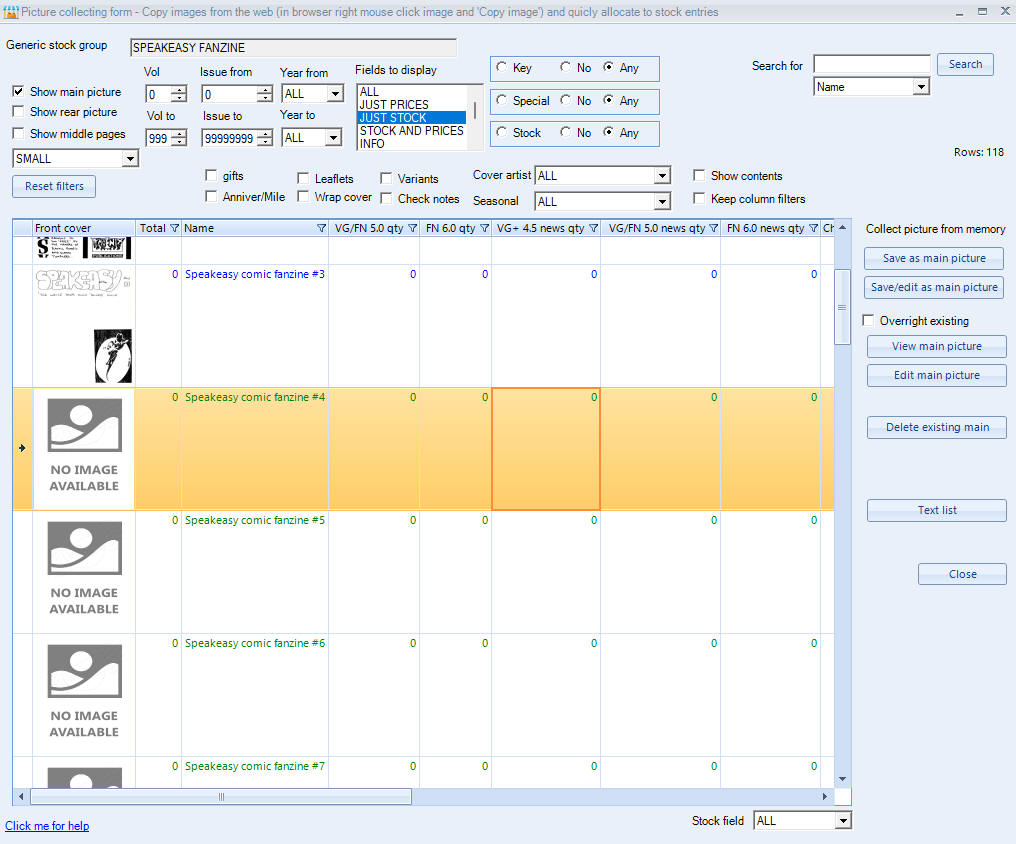
View this help page for more information Collecting pictures of stock items or comics from the Internet and quickly allocating with the Jumbler Saler picture collecting screen.